![Ving_Logo_TM_-_RGB_-_For_Web.png]](https://support.vingapp.com/hs-fs/hubfs/Ving_Logo_TM_-_RGB_-_For_Web.png?height=40&name=Ving_Logo_TM_-_RGB_-_For_Web.png)
Contact filters help you quickly find the right people for reporting or assigning courses, requirements, and checklists. Save a filter once, then use it whenever you need the same group.
Create a custom contact filter
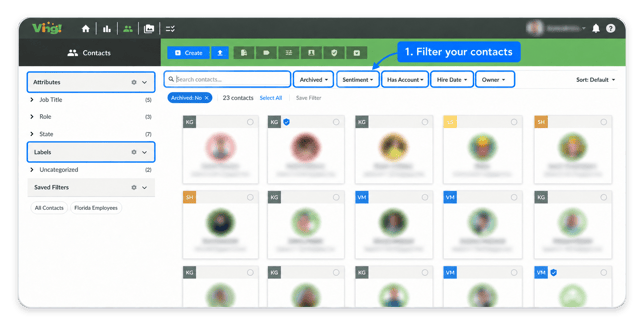
- Filter your contacts. Use labels, attributes, search, or a quick-select dropdown such as Owner or Hire Date.
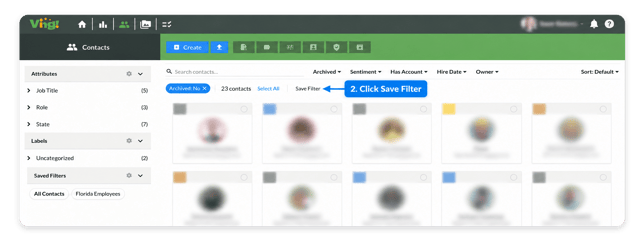
- Click Save Filter.
- Name your filter, then click Save.
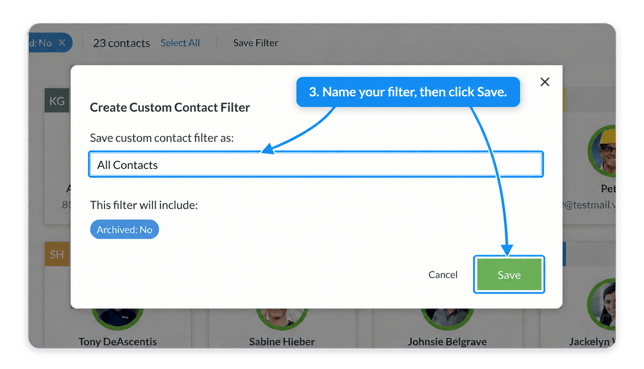
Your new filter appears under Saved Filters on the left side of the Contacts page. Select it anytime you need that group again.
TIP: Need an easy way to share with all your contacts—without manually updating labels?
Create an All Contacts filter. With only active contacts displayed, click Save Filter without adding any other criteria, name it All Contacts, and click Save. The filter stays current as contacts are added or archived.