![Ving_Logo_TM_-_RGB_-_For_Web.png]](https://support.vingapp.com/hs-fs/hubfs/Ving_Logo_TM_-_RGB_-_For_Web.png?height=40&name=Ving_Logo_TM_-_RGB_-_For_Web.png)
1. How To Assign Training To New Hires
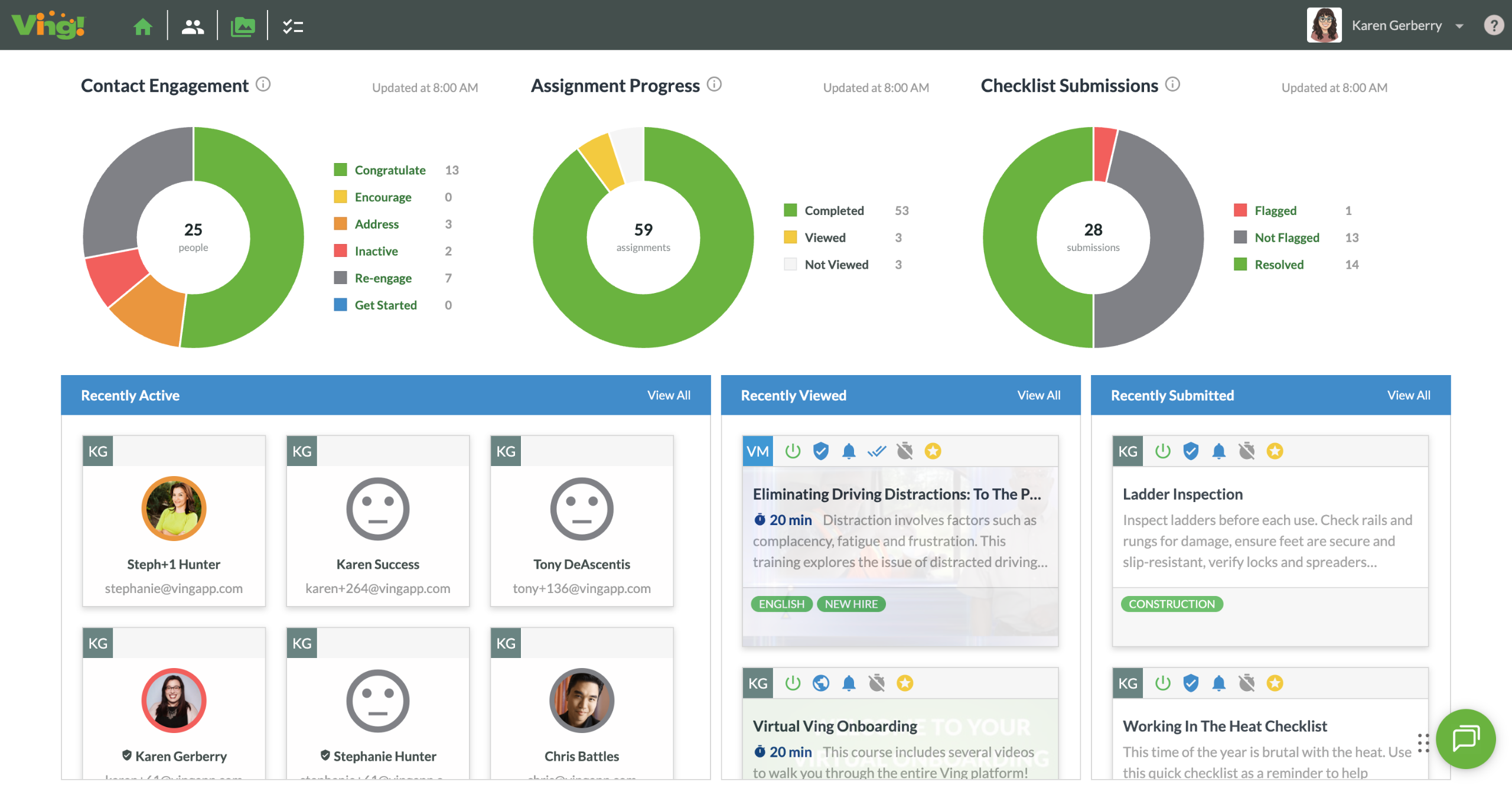
2. First let's head to the course area by click the course icon.
3. Next locate your New Hire label so you can easily find all of the training that your new hire needs to do on day one.
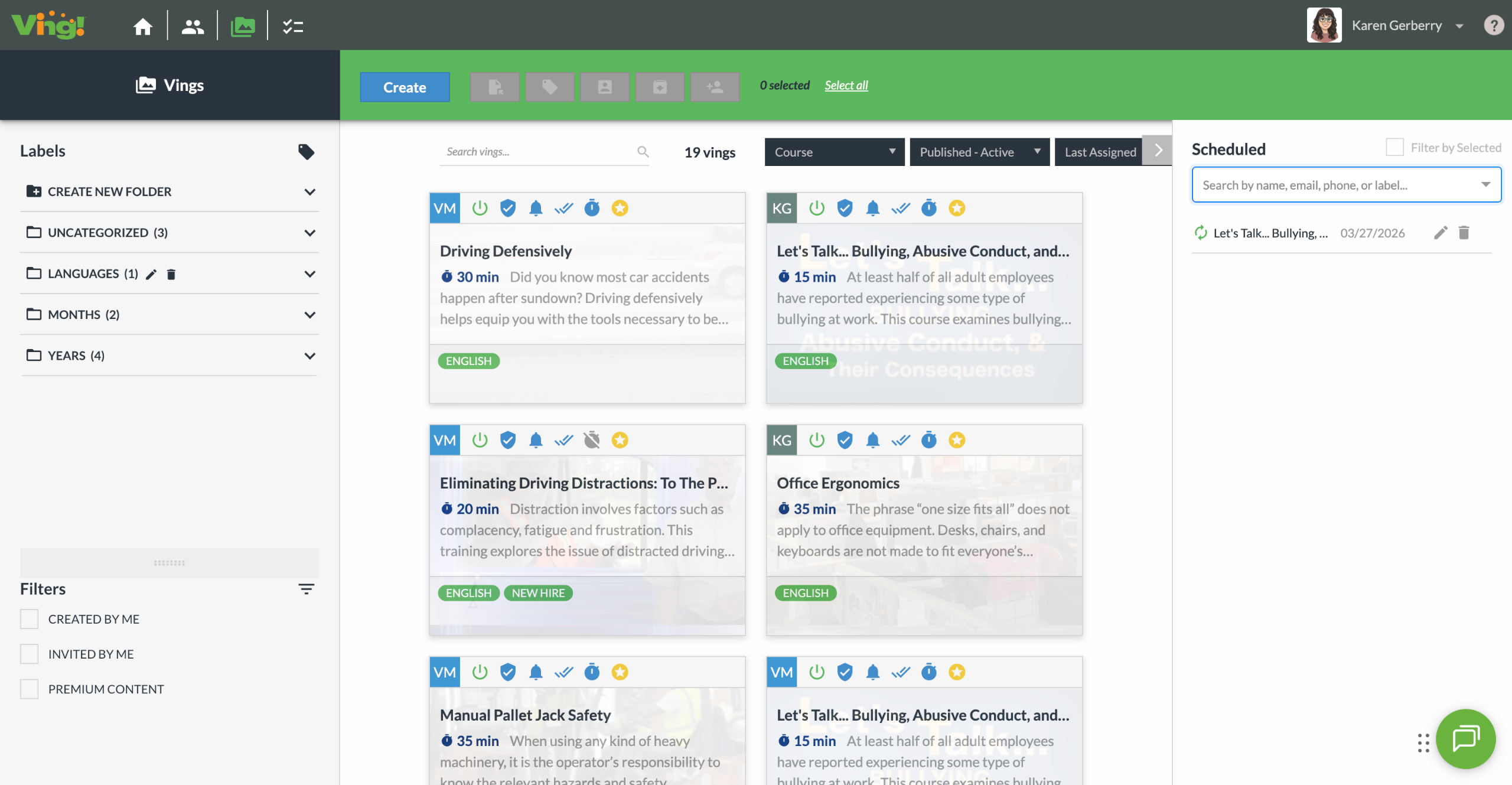
4. Then click on the label.
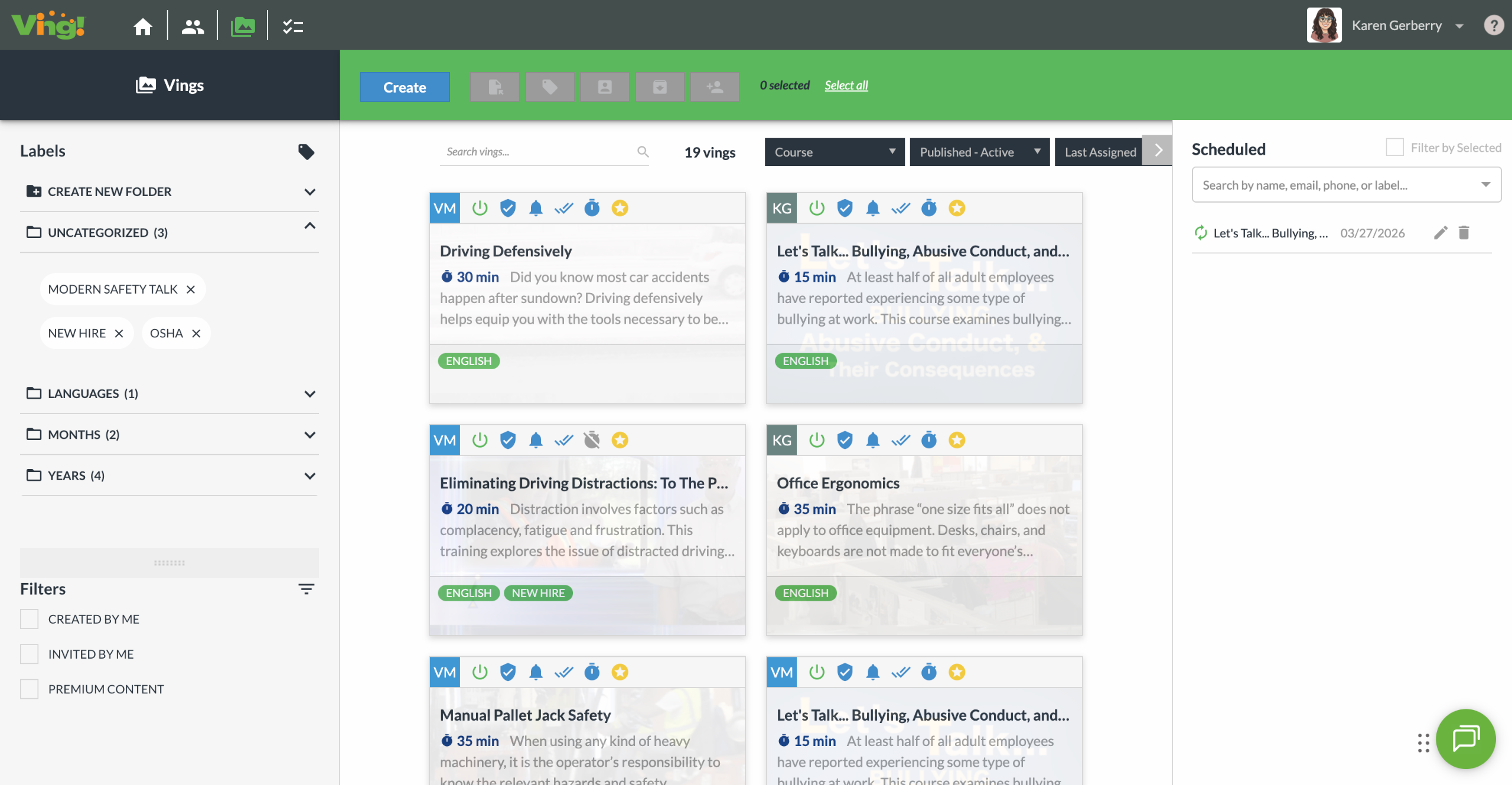
5. From here you will want to click Select All. This will select all of the courses on your screen.
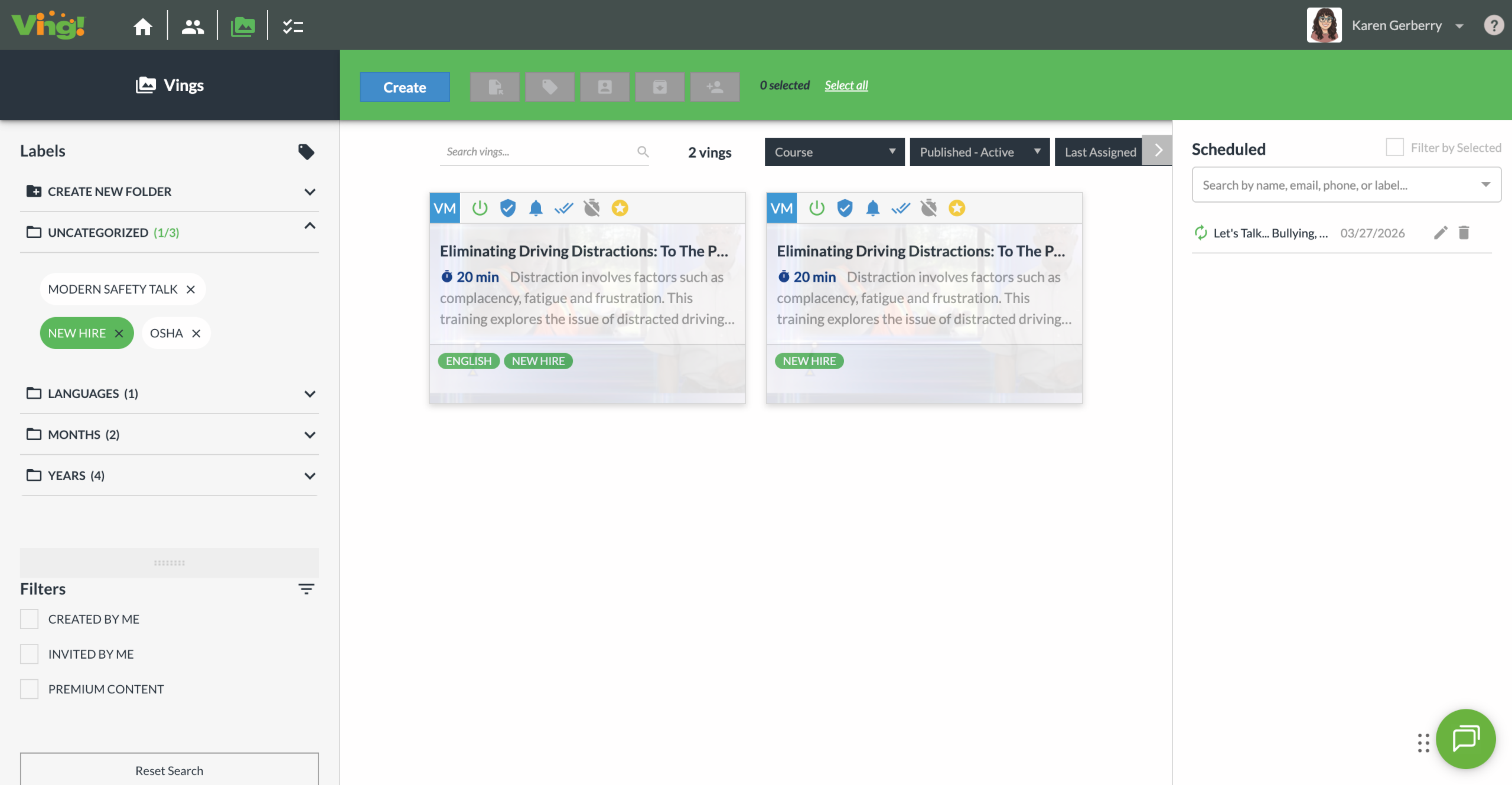
6. Now you will want to click the schedule icon.
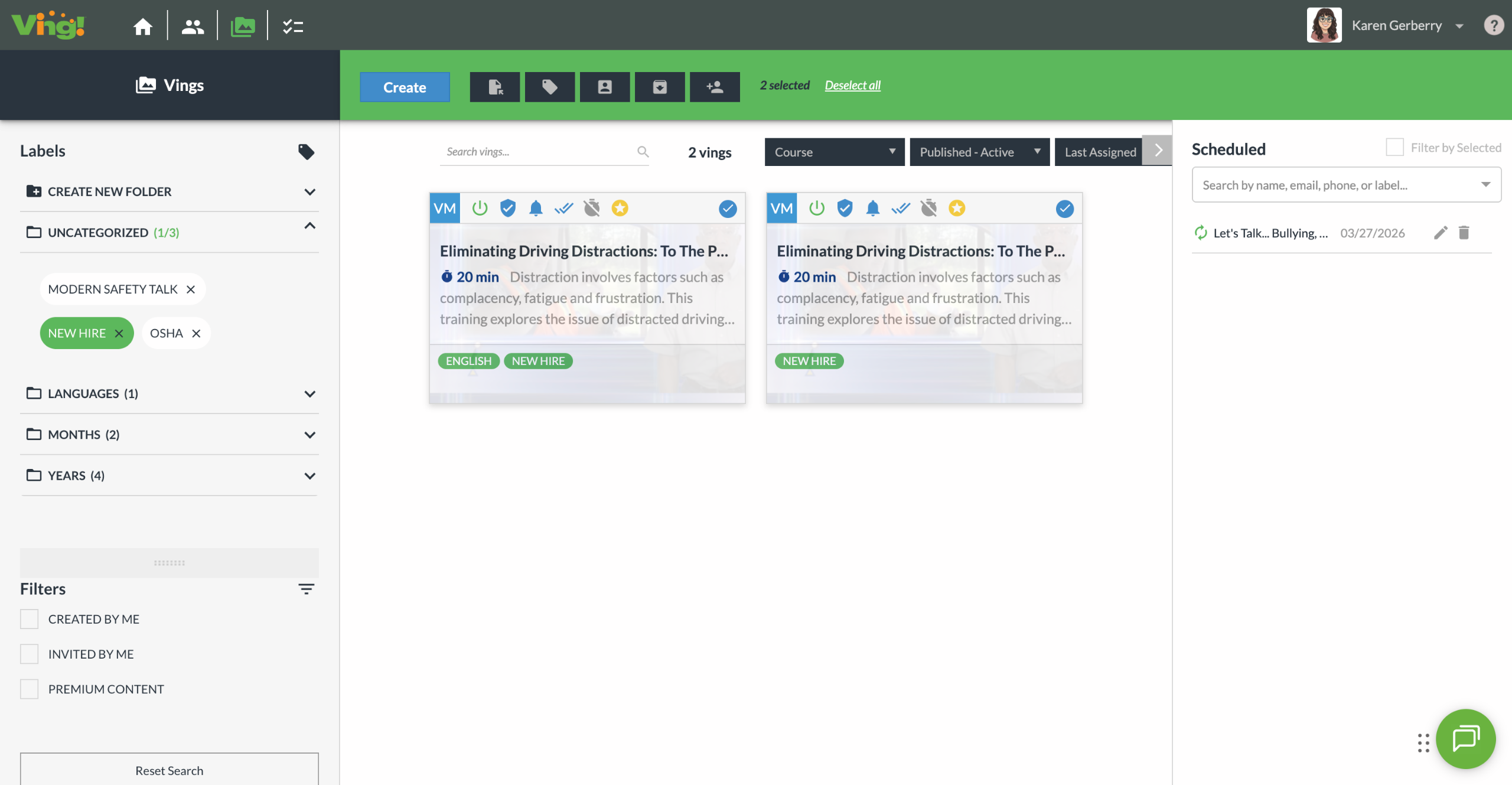
7. Type the name of your new hire here. It will start to auto populate because you will have already added the new hire to your contact book and set up their account.
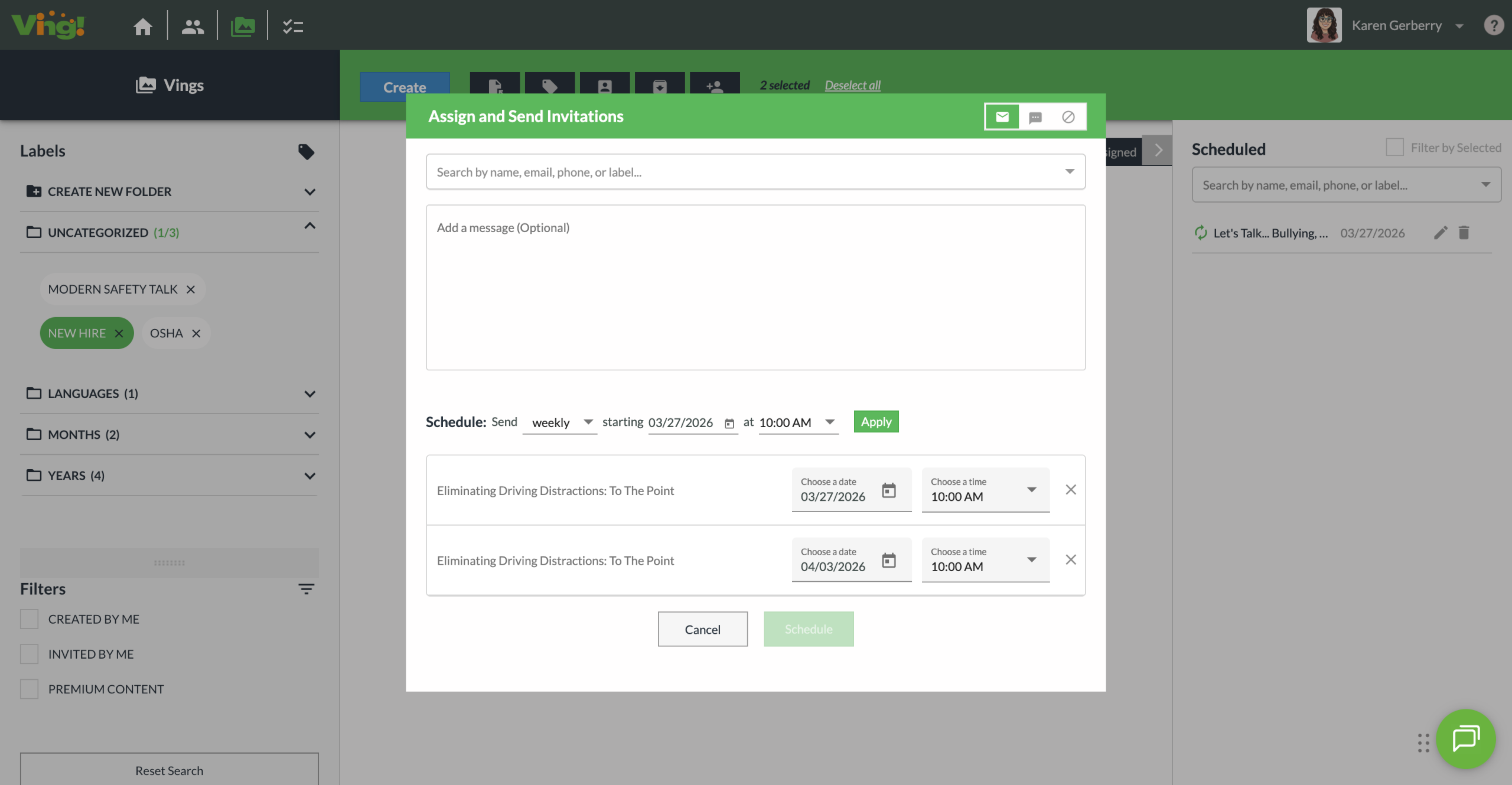
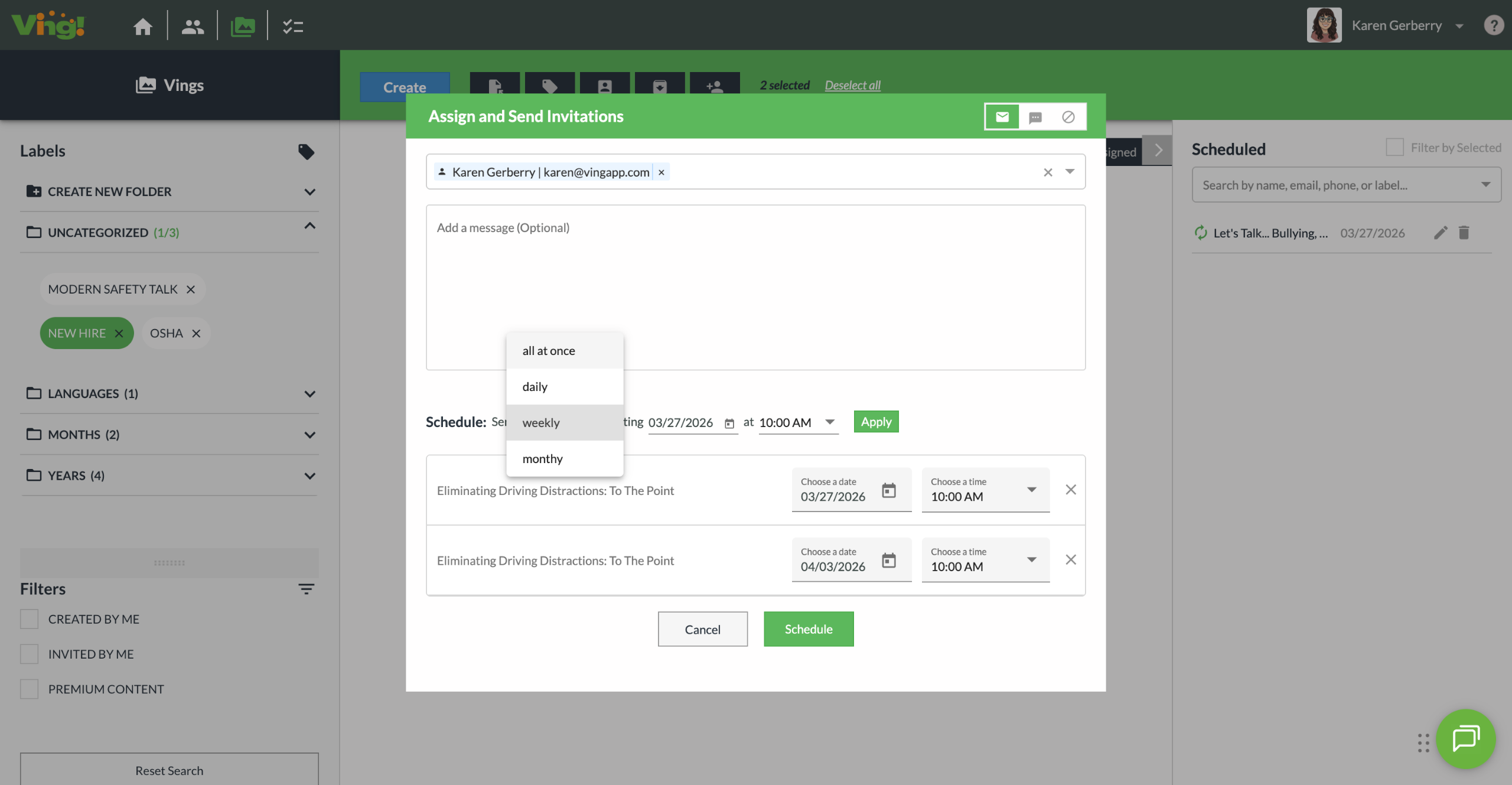
8. Next you will want to change it from weekly to all at once.
9. Then pick the date they are starting.
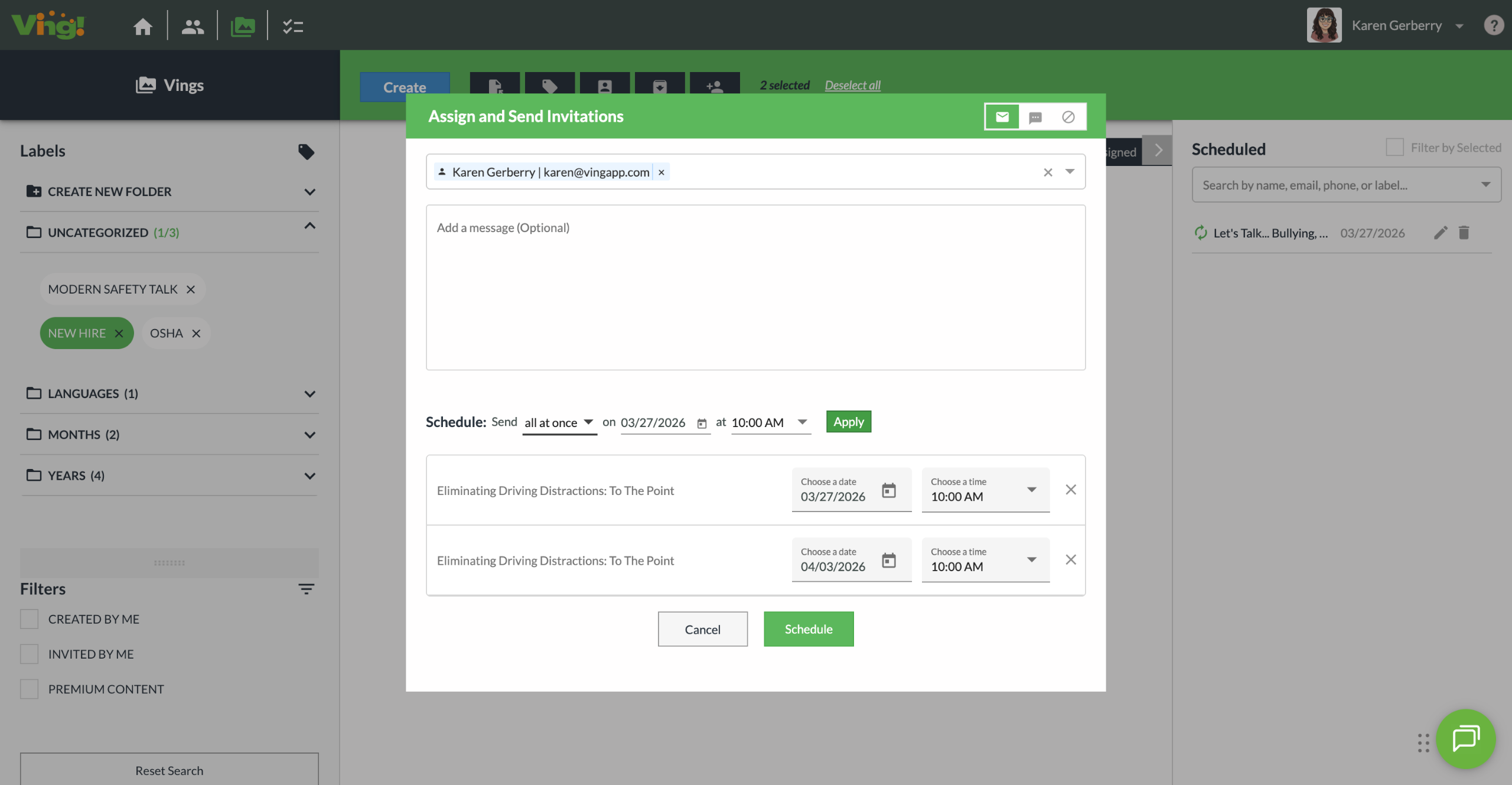
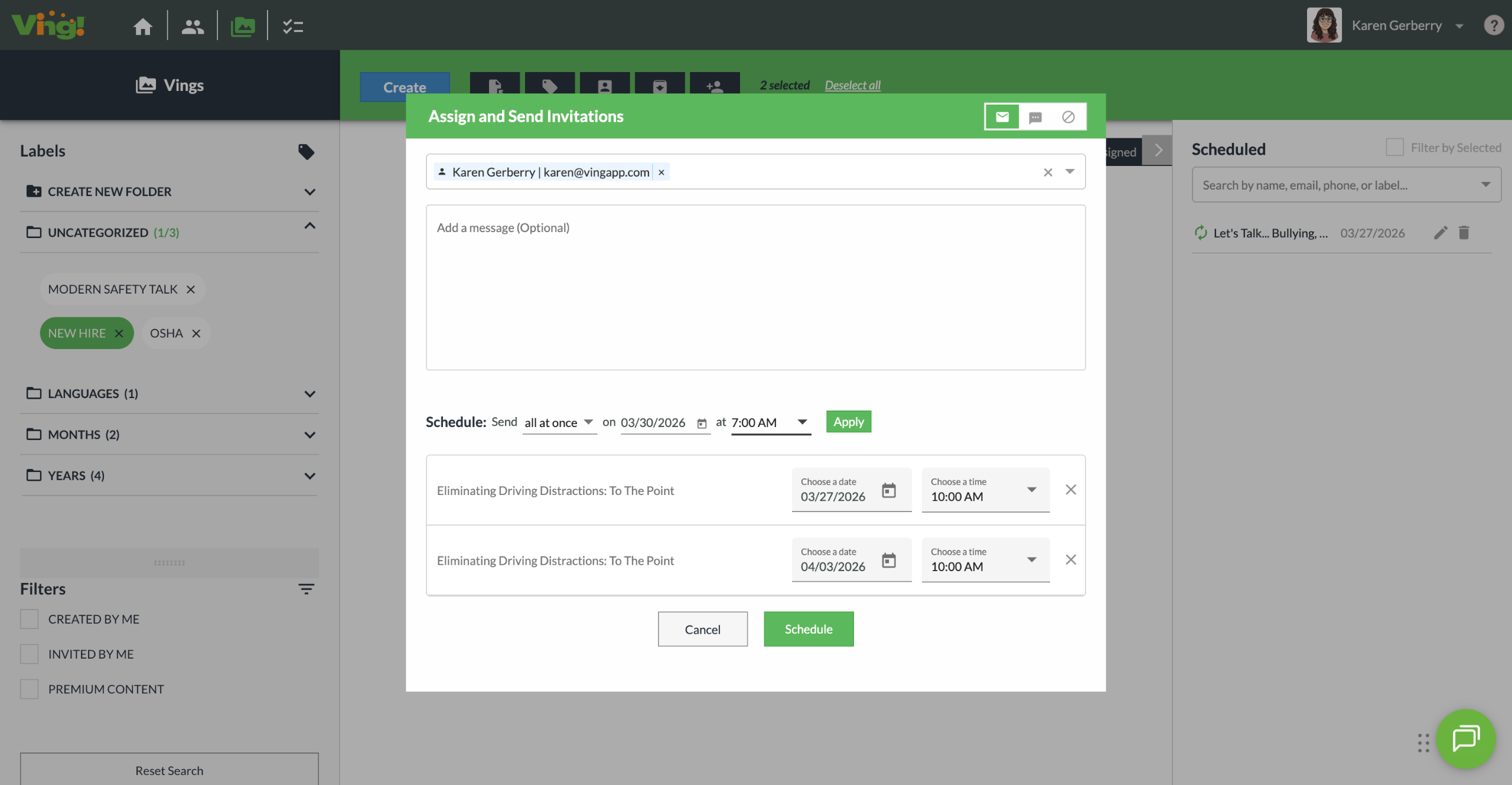
10. Pick a time for the courses to be assigned. Don't forget to pick how they are assigned in the top right corner of this pop up box.
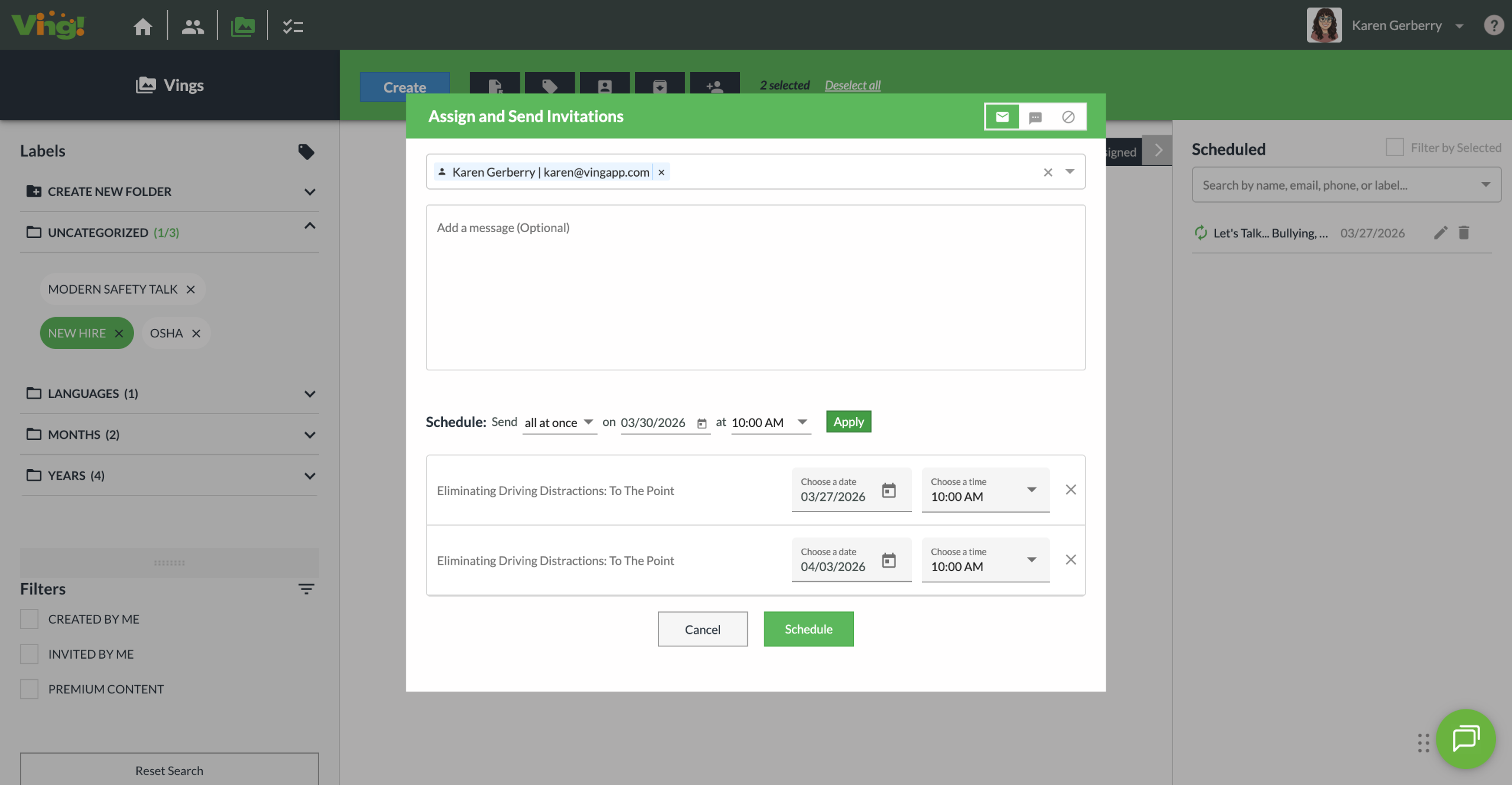
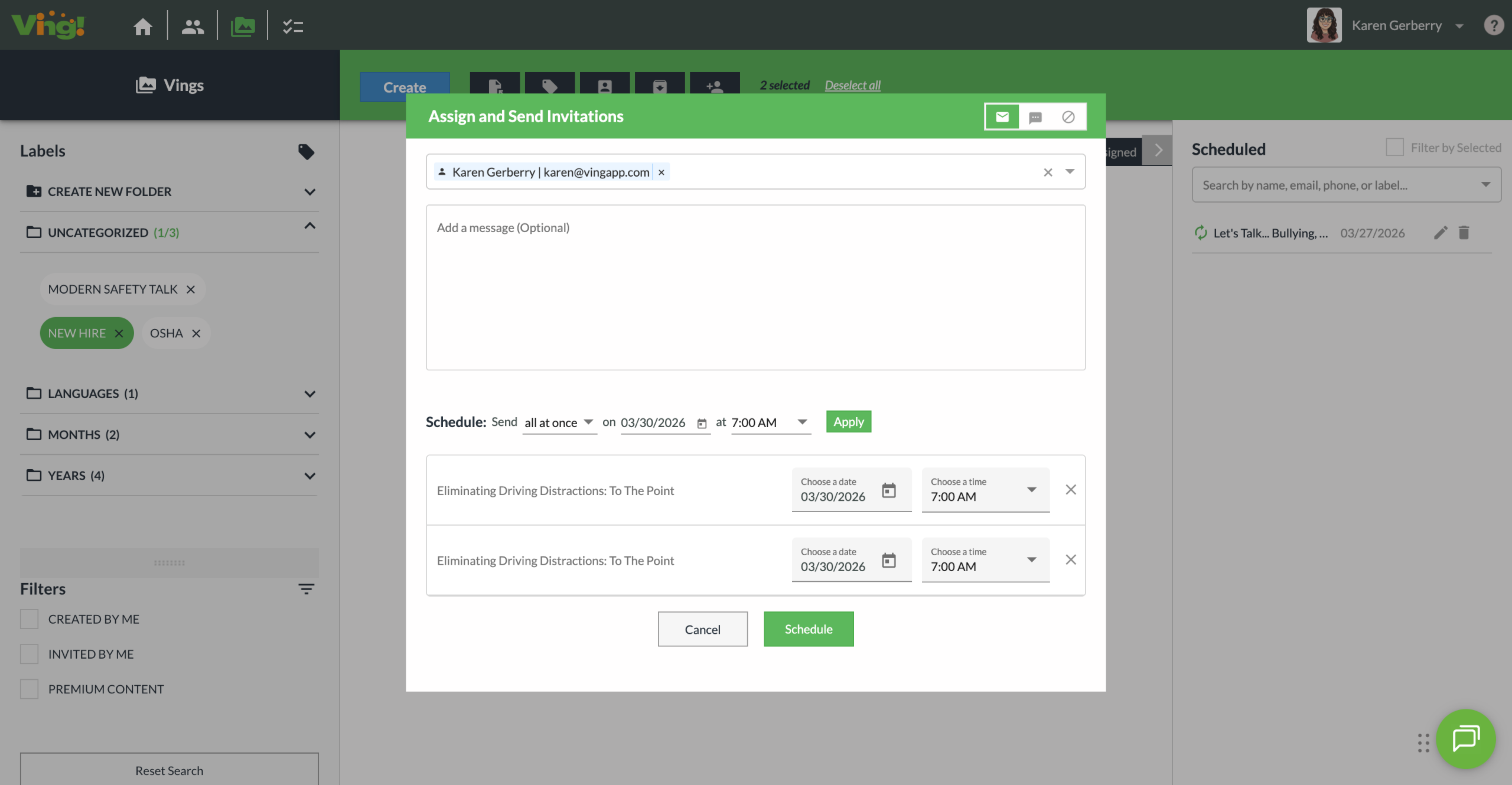
11. Finally click apply.
12. Finally you will need to click Schedule to finalize your new hire schedule.
13. You will notice all of the courses you have scheduled will appear here on the right side. You can edit, delete, or search at any time before the scheduled time.
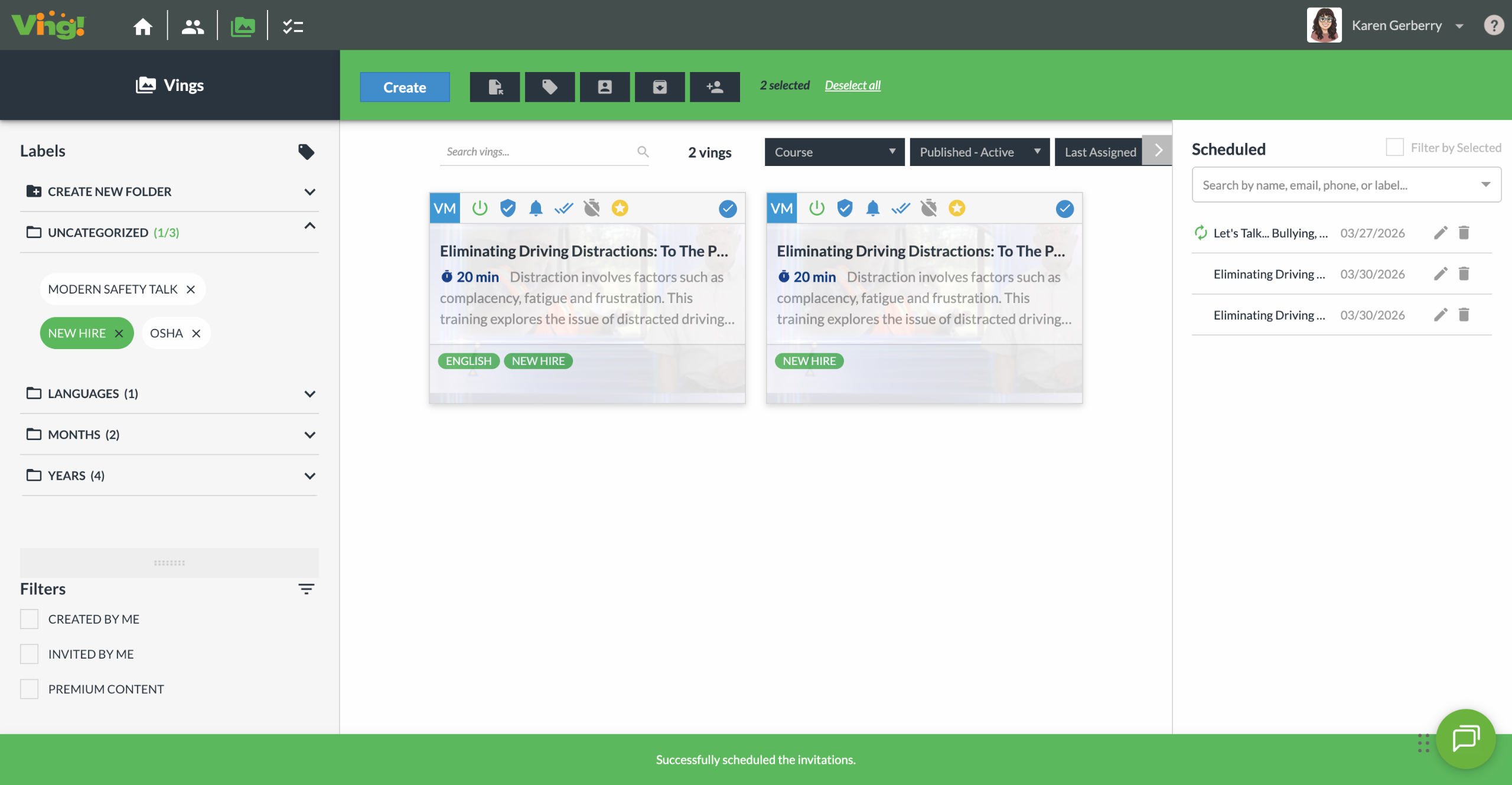
Congrats!